SSH basics on Windows 🖥️⚡🖥️
🏷️ tags: homelab
This guide shows how to log on a Linux server from a Windows client with SSH. Secure Shell (SSH) is a protocol to log on a host remotely. Is is a practical way to manage one and more servers from a single machine.
SSH software on Windows
There are several programs that implement SSH. On Windows, PuTTY has been popular for a long time.
 PuTTY being used in Mr. Robot (S2E7)
Another one is OpenSSH, which is installed by default since Windows 10 build 1809.
The ssh command on Windows is an alias for OpenSSH.
Its configuration files are saved in C:\Users\username\.ssh.
PS C:\Users\username> ssh -V
OpenSSH_for_Windows_9.5p2, LibreSSL 3.8.2
Connecting with SSH for the first time
Your server is identifiable by a hostname, as defined in /etc/hostname.
You log on the server by typing ssh server-username@server-hostname.
The first time you log on, you will get a warning that the host is unknown.
After confirming, you enter the password to authenticate.
PS C:\Users\username> ssh server-username@server-hostname
The authenticity of host 'server-hostname (112.248.247.177)' can't be established.
ED25519 key fingerprint is SHA256:roZMHYUkhDul7IK3L+J4M4BtuBjYc5W73sFz/G8U9r8.
This key is not known by any other names.
Are you sure you want to continue connecting (yes/no/[fingerprint])? yes
Warning: Permanently added 'server' (ED25519) to the list of known hosts.
server-username@server-hostname's password:
...
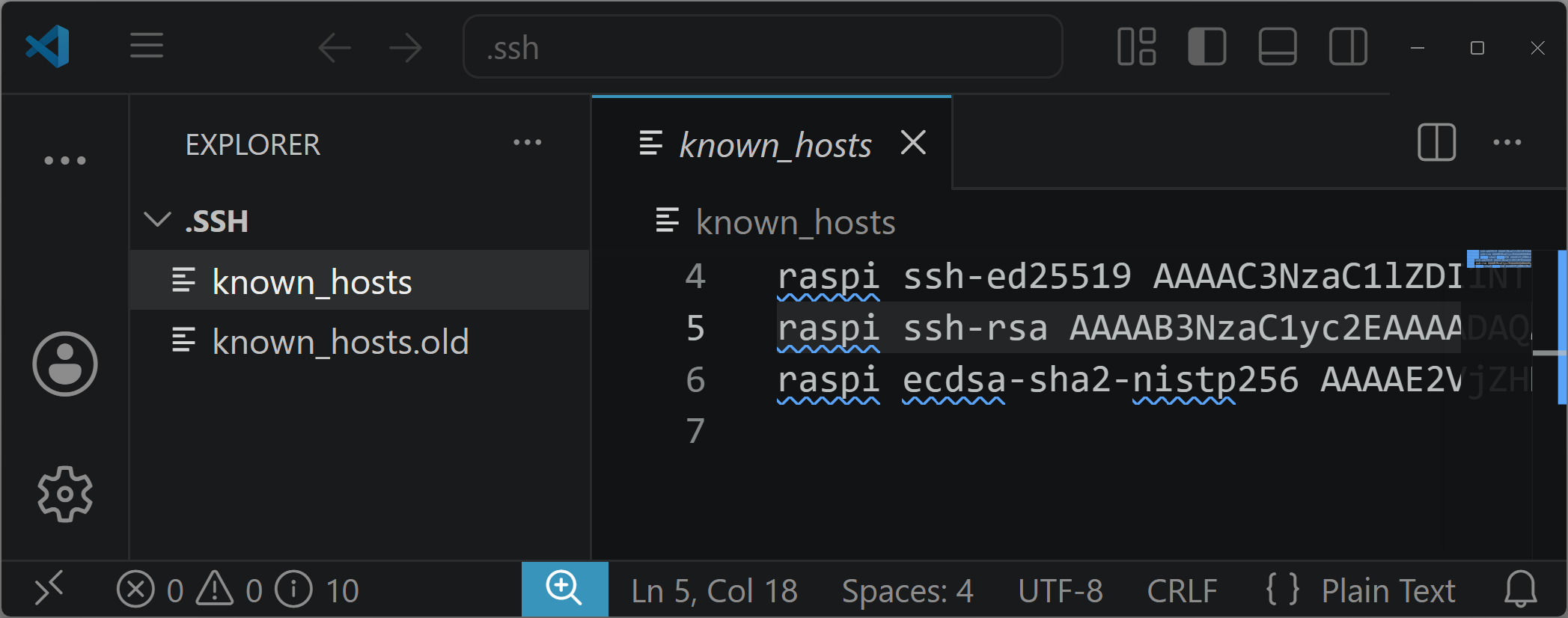
The server’s hostname and its public key for multiple encryption algorithms have been added to C:\Users\username\.ssh\known_hosts file.
This is what is meant by Warning: Permanently added 'server' (ED25519) to the list of known hosts.
The next time you connect, that public key will be used to authenticate the server and there will be no more warning.
The authentication prevents a malicious actor from replacing the server without the client noticing.
Key-based authentication
Key-based authentication uses asymmetric cryptography, which works with a pair of private and public keys. The private key remains on the client, the public key can be shared with anybody, including the server.
OpenSSH includes the ssh-keygen tool, which can be used to generate authentication keys.
You start by creating the authentication keys with ssh-keygen -t ed25519.
PS C:\Users\username> ssh-keygen -t ed25519
Generating public/private ed25519 key pair.
Enter file in which to save the key (C:\Users\username/.ssh/id_ed25519):
Enter passphrase (empty for no passphrase):
Enter same passphrase again:
Your identification has been saved in C:\Users\username/.ssh/id_ed25519
Your public key has been saved in C:\Users\username/.ssh/id_ed25519.pub
The key fingerprint is:
SHA256:JTqMR3TqpxSUzUgtMtNkhCPSeTUBmFbqAN+8LybasR4 username@client
The key's randomart image is:
+--[ED25519 256]--+
|.. =oO@B.        |
|o.B+B+=++        |
|.oooo=+.. .      |
| o   * o o       |
|  . o B S        |
|     + +         |
|  E o o          |
| o * .           |
|..+              |
+----[SHA256]-----+
OpenSSH supports multiple algorithms to generate the authentication keys.
The argument -t ed25519 specifies to use the ed25519 algorithm, which is supported since v6.5 (released in 2014) and the default since v9.5 (released in 2023).
Any modern host you connect to should support ed25519.
If not, you may need to specify a different algorithm.
You may choose to protect the keys with a passphrase for additional protection in case the client is compromised.
The fingerprint and the randomart image are hashes of the public key to recognise it more easily. In general, they can be ignored.
The authentication keys are saved to C:\Users\username\.ssh\id_ed25519 (private key) and C:\Users\username\.ssh\id_ed25519.pub (public key).
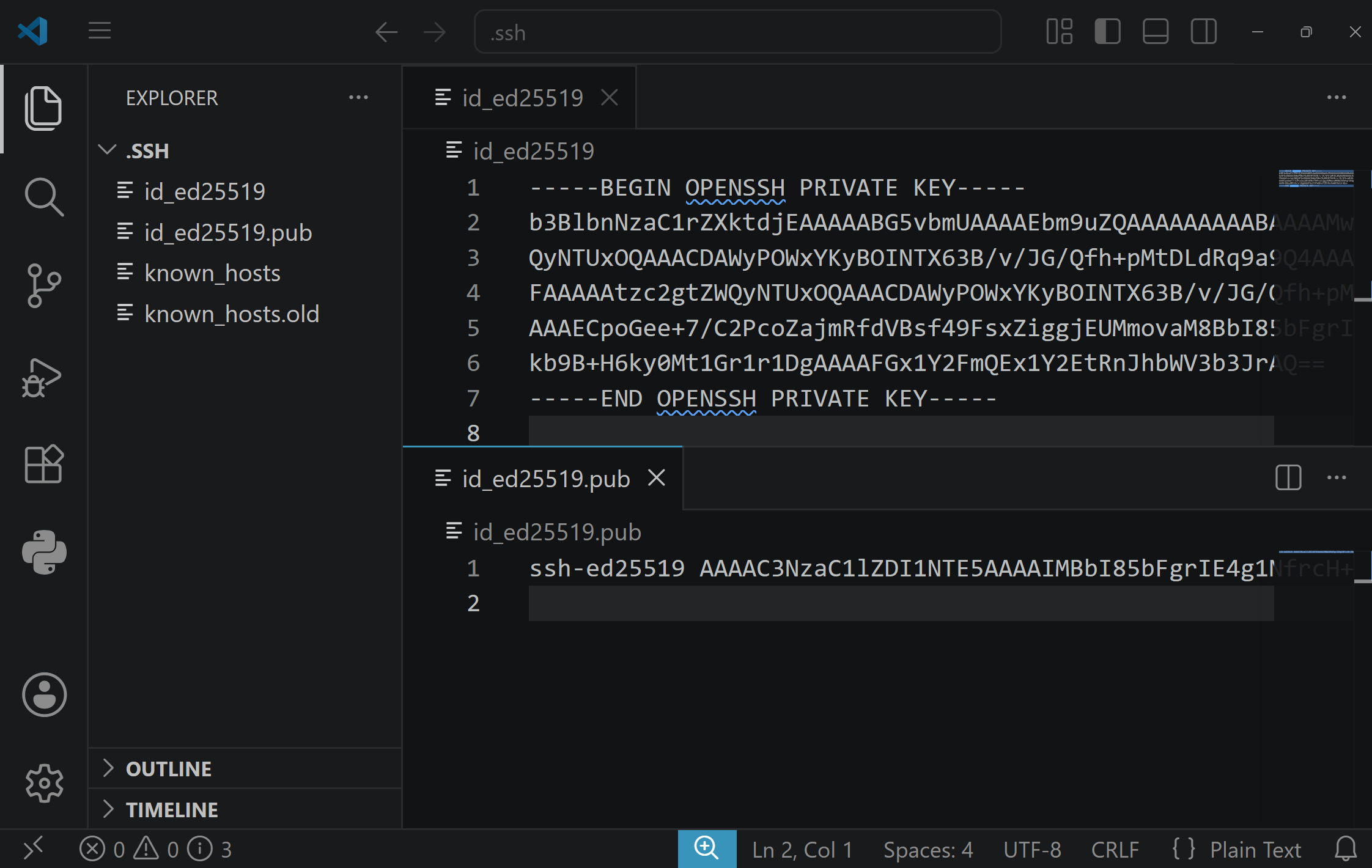 DO NOT SHARE YOUR PRIVATE KEY. This key pair is just an example, I regenerated the keys before publishing the blog post.
Sharing the public key for authentication
You need to share the public key with the server to log on without password. Use the command:
cat $home\.ssh\id_ed25519.pub | ssh server-username@server-hostname "mkdir -p ~/.ssh && cat >> ~/.ssh/authorized_keys"
This is what it does:
cat C:\Users\<client_username>\.ssh\id_ed25519.pubreads the public key,ssh server-username@server-hostnamelogs on the server after entering the password,mkdir -p ~/.sshcreates a~/.sshdirectory if missing,cat >> ~/.ssh/authorized_keysadds the public key to the~/.ssh/authorized_keysfile.
Connect to the machine with SSH
You can now log on without password with ssh server-username@server-hostname.
The client uses its private key to generate a signature, which is verified by the server with the public key.
PS C:\Users\username> ssh server-username@server-hostname
Linux server 6.12.75+rpt-rpi-v8 #1 SMP PREEMPT Debian 1:6.12.75-1+rpt1 (2026-03-11) aarch64
...
A single pair of authentication keys is sufficient per client. You don’t need to create a separate key pair for each host you want to connect to.
If the private key is not saved to the default path, you need to specify it when connecting.
Links
- The Secure Shell (SSH) Protocol Architecture (RFC 4251)
- PuTTY landing page
- OpenSSH
- OpenSSH for Windows overview (Microsoft Learn)
- Key-based authentication in OpenSSH for Windows (Microsoft Learn)